Computed and Typed Values
This is the most important behaviour in Aventurine, and the one that surprises people. It applies to every cell in the Cash Flow statement.
Every cell calculates itself from your transactions. Typing in a cell overrides it. Clearing the cell hands it back.
There is no setting for this, no switch per category, and no “sync” mode. Every cell is in one state or the other, and you move between them by typing and clearing.
The four states of a cell
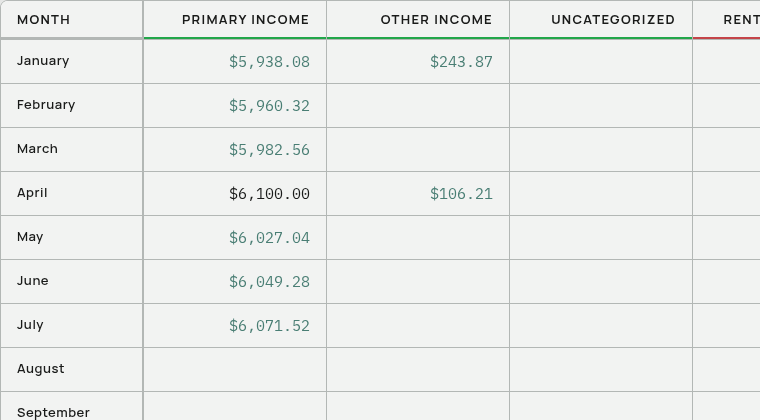
| What you see | What it means |
|---|---|
| Accent-coloured italics | Calculated from your transactions. |
| Plain text | A number you typed. |
| Blank | Nothing here — no transactions and nothing typed. |
| Plain text with a ↺ on hover | A number you typed, sitting on top of a calculation. |
The colour is the only signal. There is no icon, no badge, and no “computed” label cluttering the grid.
Taking a cell back
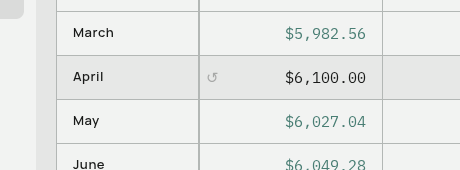
Two ways, both identical in effect:
- Clear the cell — select its contents and delete them.
- Click the ↺ that appears on hover when a calculated value is underneath. Its tooltip shows you the figure you would return to.
Either way your typed value is discarded and the cell goes back to calculating itself. If there are no transactions for that month and category, it goes blank.
Blank is never an override
Clearing a cell always means “go back to automatic”. It never means “force this to zero”.
If you genuinely want a cell to read zero — because you know the calculated figure is wrong and the truth is nothing — type 0. That is a typed value like any other, and it will show as plain text with a ↺ next to it.
The first time you override
The first time you ever type over a calculated cell, a short message explains what just happened:
This cell now holds your value and won’t update from transactions. Clear it anytime to return to the computed figure.
It appears once, ever.
Why it works this way
Most finance apps make you choose. Either the tool is automatic, and you cannot correct anything; or it is a spreadsheet, and nothing fills itself in.
Aventurine gives you both, one cell at a time. Import your transactions and the whole statement fills in. Then, in the one month where you know the imported figure is wrong — a missing week of history, a cash payment your bank never saw — type the right number in that one cell. Every other cell keeps updating itself.
When you would type over a cell
History you never imported. You have January to March from your old spreadsheet but no transaction file for it. Type the totals in.
A month you know is incomplete. Your bank’s export missed a week. Type the real figure.
Cash spending. Money that left your wallet and never touched an account.
Adjustments. A refund your bank recorded strangely, or a one-off you want to state directly.
Things that follow the same rule
Once a cell is overridden, everything that reads the statement uses your value, not the calculation:
- The dashboard’s Monthly Cash Flow, Spending, and Income & Expenses cards.
- The average monthly spend on the Credit Cards page.
Everything agrees, because everything reads the same blended result.
What does not follow this rule
The Balance Sheet. Its cells are plain values — either you typed them or an import put them there, and there is no calculated layer underneath. See The Statements Page.
The Transactions page. That is the raw ledger. Nothing there is calculated.
Charts that read transactions directly. The Spending page and the Forecast read your transactions, not the statement, so a typed-over cell does not change them.
Copying a year
If you duplicate a year using Edit Year, only your typed values move. Calculated cells are not copied, because they recompute from whatever transactions exist in the new year. This is almost always what you want — copying calculated figures forward would fabricate history.
Related: The Statements Page · Statement Years · Working in the Tables