Working in the Tables
Three pages use a spreadsheet-style grid: the Cash Flow and Balance Sheet tabs on Statements, and Portfolio. They all behave the same way.
Typing a number
Click a cell and type. The currency symbol and thousands separators appear as you go, following your Format settings, and your cursor stays where you expect it.
You do not need to type the currency symbol, and you can paste a value with one in — it is stripped.
Your typing saves shortly after you stop, and immediately when you click or tab away. There is no save button.
If a save fails you get a message saying so: “Couldn’t save your change — it hasn’t been stored.” That means the number on screen did not reach your file. It is the app’s way of never letting a failed save look like a success.
Clearing a cell
Select its contents and delete them, or select the cell and press Delete or Backspace.
On the Cash Flow tab, clearing has a specific meaning: it hands the cell back to being calculated from your transactions. Blank never means “force this to zero” — for that, type 0. See Computed and Typed Values.
Moving around
| Key | Does |
|---|---|
| ↑ ↓ ← → | Move one cell. |
| Enter | Move down one cell — for typing a column of figures quickly. |
| Tab | Move to the next field. |
Arrow keys stop at the edges of the table rather than wrapping around.
Selecting a block
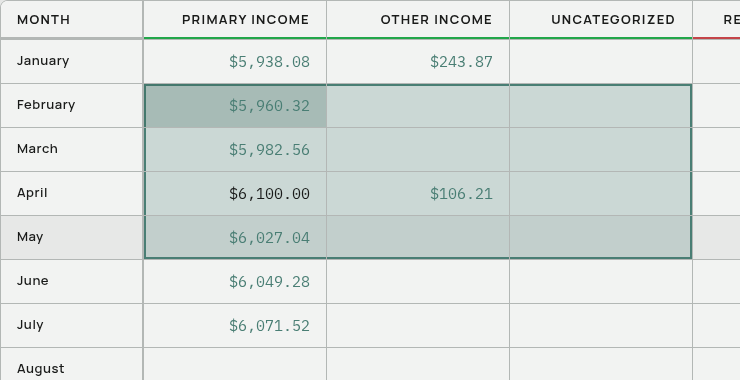
With the mouse — click a cell and drag across the ones you want.
With the keyboard — hold Shift and use the arrow keys to grow or shrink the selection from the cell you are in.
Shift + click — select everything between the current cell and the one you click.
Copy and paste
| Shortcut | Does |
|---|---|
| Ctrl/Cmd + C | Copy the selected block. |
| Ctrl/Cmd + V | Paste, starting at the top-left of the selection. |
| Delete / Backspace | Clear every cell in the selection. |
Copied cells go to the clipboard as tab-separated text, so you can paste them straight into Excel, Google Sheets, or a text editor. The reverse works too: copy a block out of a spreadsheet and paste it into Aventurine.
Pasting spills down and to the right from where you start, and stops at the edges of the table rather than creating rows.
Every pasted cell is saved exactly as if you had typed it — the same rules apply, including the Cash Flow override behaviour.
Totals
The Cash Flow table has a Total row along the bottom, one per column, updating as you type. A column with nothing in it stays blank rather than showing $0.
The Balance Sheet has no total row — adding cash accounts to debt accounts would not mean anything. Your net worth is on the dashboard instead, where debt is subtracted properly.
Portfolio has a totals row with total units, total market value, and a portfolio-wide return.
Read-only cells
Portfolio’s Total and ROI columns are calculated and cannot be typed in. You can still select and copy them.
Editing column names
Column headings are not editable in the table. Rename them in the relevant manager:
- Cash Flow columns are your categories: ⋮ → Manage Categories. See Categories.
- Balance Sheet columns are your accounts: ⋮ → Manage Columns. See Accounts.
- Portfolio account names: the ⋮ on the account, then Rename Table.
Leaving the page mid-edit
Navigating away while an edit is still saving is safe — pending saves are flushed before the page changes.
Related: Computed and Typed Values · The Statements Page · The Portfolio Page · Keyboard Shortcuts