Statement Years
Your statements are organized one calendar year at a time. Each year is a table of twelve months, and there is one for Cash Flow and one for the Balance Sheet.
The year stepper in the middle of the Statements toolbar walks between them.
Years are created for you
Importing creates the years it needs. Import a file spanning October 2024 to March 2026 and Aventurine creates 2024, 2025, and 2026 in both statements. You do not have to set anything up first.
A new database starts with the current year, so there is somewhere to type before you have imported anything.
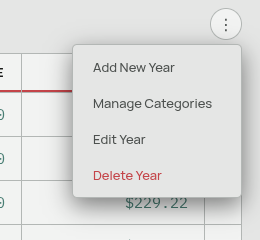
⋮ → Add New Year creates one by hand, in both statements at once.
Why a year has to exist
A year is not just a label — it is what makes the Cash Flow statement look at that year at all.
Transactions in a year with no statement table contribute nothing to the Cash Flow statement, to the dashboard, or to the Credit Cards spend average. They still exist in your ledger, still show in searches and exports, and still appear on the Spending page and in the Forecast (which read transactions directly). They just do not appear in the statement.
Since importing creates the years automatically, this only comes up if you deleted a year deliberately — which is exactly the point. Deleting a year is how you say “leave this year out of my statements”.
Deleting a year
⋮ → Delete Year removes the year in both statements, along with:
- Every value you typed into that year’s Cash Flow cells.
- Every value on that year’s Balance Sheet.
It does not delete your transactions.
So if you delete 2025 and later add it back, your Cash Flow statement refills itself from the transactions that were there all along — but the numbers you had typed over the top, and your whole Balance Sheet for that year, are gone. There is no undo.
Renumbering a year
⋮ → Edit Year changes a year’s number — for example, correcting 2025 to 2024. Your typed values move with it.
Only typed values move. Calculated cells recompute in the new year from whatever transactions actually fall in it, which is the correct behaviour: transactions carry their own dates, and moving a statement year does not move them.
The practical effect is that renumbering is safe for a Balance Sheet mistake (all typed values, all moved) and can produce surprises on the Cash Flow side (your typed corrections move, the calculated figures do not follow).
Both statements stay in step
Add New Year and Delete Year always act on both statements, so a year that appears in one appears in the other. If a year somehow exists in only one — from an import that touched only balances, for example — Add New Year will fill in the missing side.
If a year is missing from the tab you are looking at, the page tells you so and points you at Add New Year.
The order things appear in
Years are listed oldest to newest in the stepper, and the year picker lists them newest first. When a new year appears — because you added it or imported into it — the stepper jumps to it.
Related: The Statements Page · Computed and Typed Values · Importing Transactions