Adding and Editing Transactions
Most transactions arrive by import, but cash spending, transactions you know about before the statement arrives, and corrections all need to be entered by hand.
Adding one

On the Transactions page, click the + button. A blank row appears at the top of the table.
| Field | Notes |
|---|---|
| Date | Today’s date is filled in. Required. |
| Description | What it was. This is what the app learns from, so use something you would recognize next time. |
| Account | Optional. “No account” is fine. |
| Category | Optional. Leave it as “Uncategorized” if you are unsure. |
| Amount | Required. Enter a plain positive number — direction comes from the category. |
| Notes | Optional. |
Save with the tick, or press Enter. Cancel with the ×, or press Escape.
The row sorts into place by date once saved.
The inline row has no Type control, because a new row’s direction comes from its category. If you want to add an uncategorized transaction and set its direction, save it first and then edit it — the edit dialog has a Type dropdown.
After saving
If you gave it a category and other uncategorized transactions share the same description, a dialog offers to categorize those too. Everything is pre-ticked; Skip dismisses it.
You have also just taught the app a rule: future transactions with that description are categorized automatically. See Automatic Categorization.
Editing one
Tick the row’s checkbox and click the pencil. A dialog opens with every field editable.
Make your changes and click Next, then Save all changes on the review step. The review lists exactly what will change, old value to new.
This is the same dialog whether you selected one row or fifty — see Editing Many Transactions at Once for the bulk features.
Why Type is greyed out
As soon as a row has a category, its direction comes from that category and the Type dropdown locks. It is only editable while the row is uncategorized. See Money In Money Out and Transfers.
Editing the description
Two side effects worth knowing:
The clean merchant name is dropped. If the row was showing a tidy name over your bank’s text, editing the description replaces both with your text. Your wording wins. See Merchant Names.
Duplicate detection changes. Duplicates are matched on date, amount, and description, so editing a description means a future import of that same transaction will not be recognized as a repeat.
Changing the category
Setting one teaches the app a rule for that description.
Clearing one removes the rule. This is how you correct a rule that is filing things wrongly: clear the category, then set the right one.
Deleting
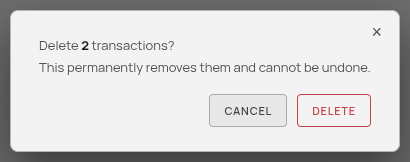
Tick one or more rows and click the trash button. A confirmation appears with the count.
Deleting is permanent — there is no undo and no bin.
Deleting a transaction does not affect anything else. Your categories, learned rules, and Balance Sheet are untouched. Your Cash Flow statement recalculates, unless you typed over the affected cells. See Computed and Typed Values.
Deleting everything
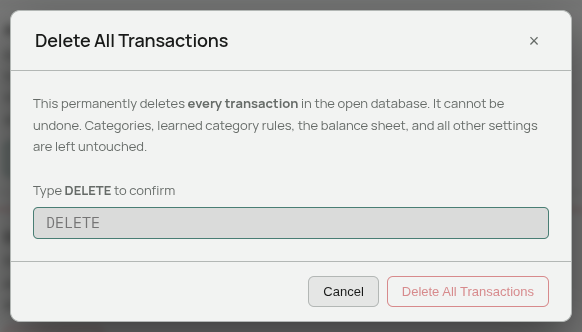
Settings → Preferences → Transactions → Delete All… wipes the entire ledger. You must type DELETE to enable the button.
It removes only transactions. Categories, learned rules, the Balance Sheet, the Portfolio, and every setting are left alone. It is the fastest way to start the ledger over after a botched series of imports without losing your setup.
Field limits
| Field | Limit |
|---|---|
| Description | 200 characters |
| Notes | 500 characters |
| Amount | Any number; stored to the cent |
| Date | Any real date |
Longer text is trimmed rather than rejected.
Related: The Transactions Page · Editing Many Transactions at Once · Automatic Categorization