The Statements Page
Two statements behind two tabs, sharing one toolbar:
- Cash Flow — what came in and what went out, by month and category.
- Balance Sheet — what each account was worth, by month.
They are separate tables but the same year. Whichever tab you are on, the year stepper in the middle of the toolbar controls both.
The toolbar

Tabs on the left. ‹ 2026 › dead centre — the arrows walk between the years you have, and clicking the year opens a picker of all of them. ⋮ on the right, holding every action.
The ⋮ menu
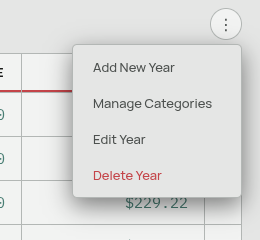
| Item | When it appears | What it does |
|---|---|---|
| Add New Year | Always | Asks for a four-digit year and creates the table in both statements. |
| Manage Categories | Cash Flow tab | Opens the category editor. See Categories. |
| Manage Columns | Balance Sheet tab | Opens the account editor (below). |
| Edit Year | When a year is shown | Renumbers the year — for example 2025 → 2024. Values move with it. |
| Delete Year | When a year is shown | Removes the year and everything typed into it, in both statements. |
Delete Year deserves care. It permanently removes every value you typed into that year in both tables. It does not delete your transactions — so if you delete 2025 and then create it again, the Cash Flow table refills itself from your transactions, but anything you had typed over the top is gone.
The Cash Flow tab
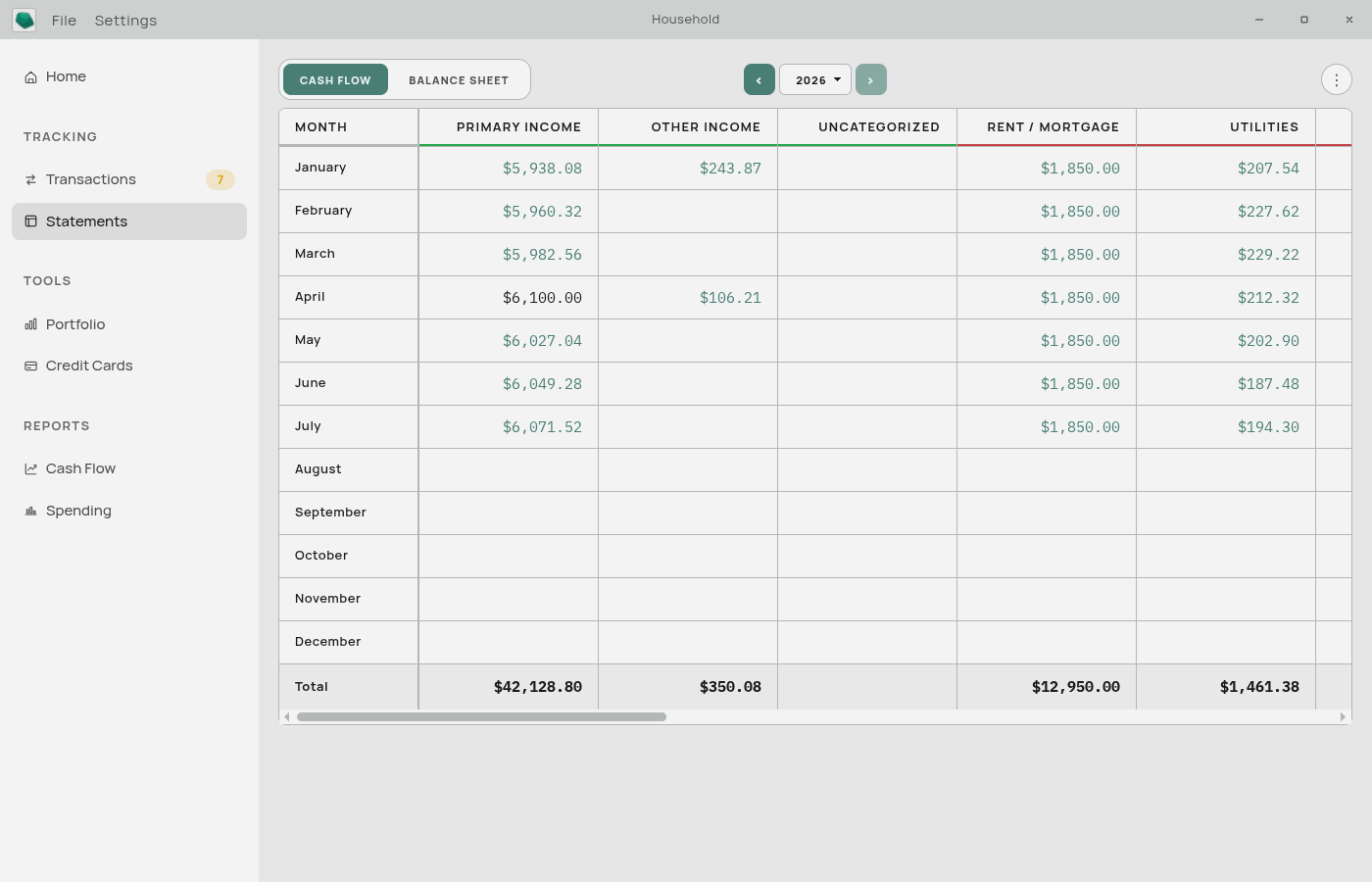
Twelve rows, January to December. One column per category, grouped by type, with a Total row along the bottom.
The one rule that matters here
Every cell fills itself in from your transactions. Typing in a cell overrides it. Clearing the cell hands it back.
- A cell in accent-coloured italics was calculated from your transactions.
- A cell in plain text is a number you typed.
- A cell that is blank has nothing in it — no transactions, nothing typed.
- A cell you have typed over sits on top of a calculated value, and shows a small ↺ on hover. Click it to throw away your value and go back to the calculated one. The tooltip tells you what the calculated figure is before you commit.
This is the single most important behaviour on the page and it has its own note: Computed and Typed Values.
The Uncategorized columns
Two columns you cannot rename or delete: one on the income side, one on the expense side. They hold the total of every transaction that has no category, which is how uncategorized money still shows up in your statement instead of quietly vanishing.
You never assign a transaction to them. They fill and empty on their own as you categorize.
Managing the columns
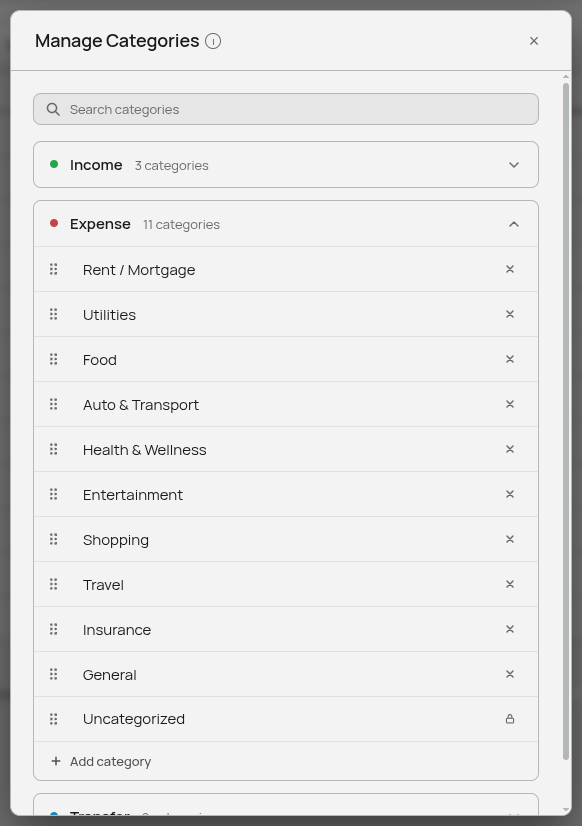
The Cash Flow columns are your categories, so they are managed in ⋮ → Manage Categories rather than a column editor. Reordering categories there changes the column order here. See Categories.
The Balance Sheet tab
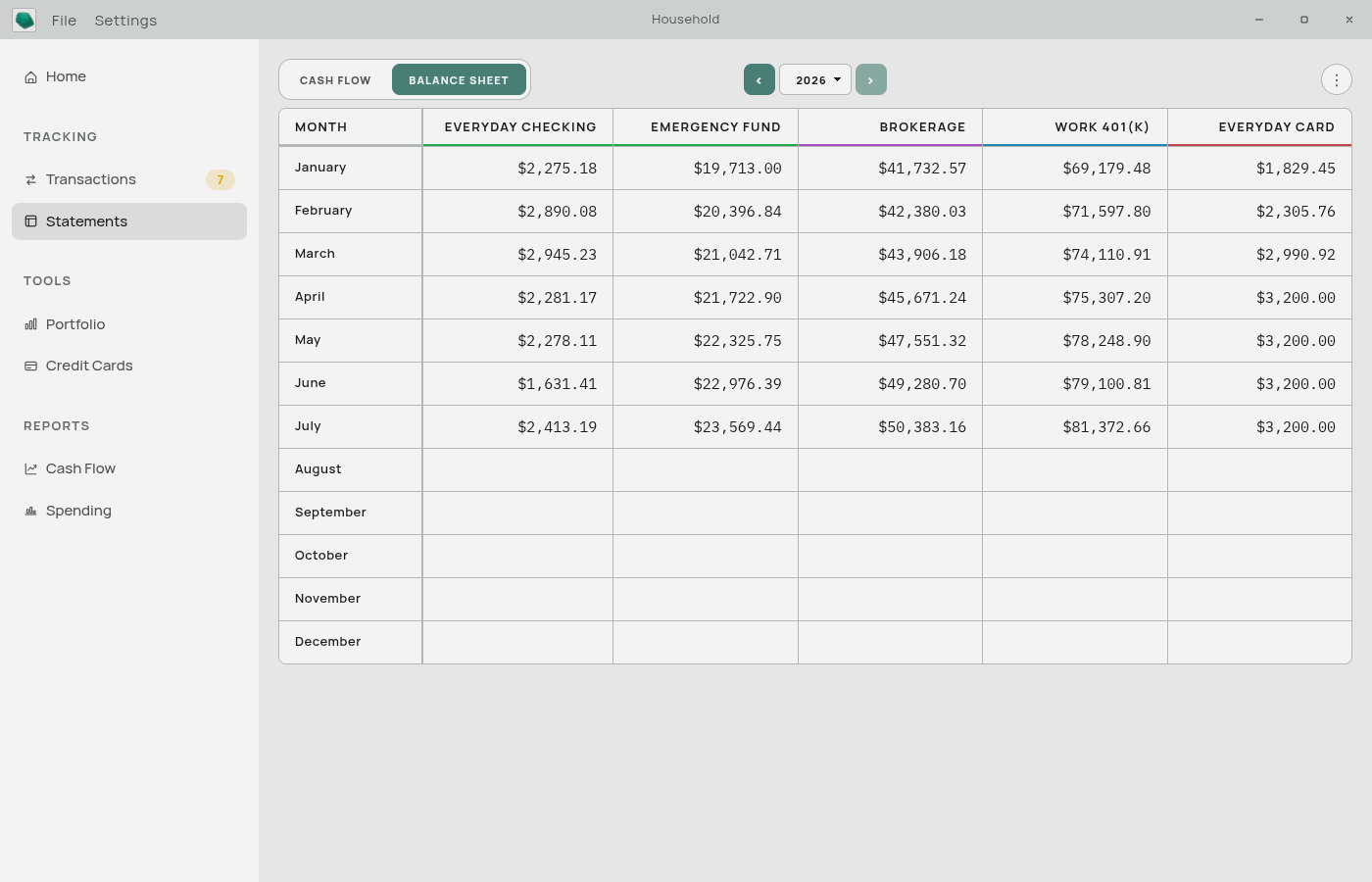
Twelve rows again, one column per account, grouped by type: Cash Accounts, Investment Accounts, Retirement Accounts, Debt Accounts. No total row.
Each cell is what that account was worth at the end of that month.
Where the numbers come from
Two places, and they behave identically once they land.
- You type them. Click a cell and enter a figure.
- An import fills them in. If your bank’s file has a running balance column, or if it is an OFX file with a closing balance, Aventurine takes one figure per month and writes it into the account you imported into. See Balances From Your Statement.
An imported balance is an ordinary cell — no special styling, no lock. You can edit it, clear it, or type over it, and it behaves exactly like a figure you entered yourself. Importing the same month again overwrites the cell with the newer file’s figure.
The Balance Sheet is not calculated from your transactions. Aventurine does not try to reconstruct your balance by adding transactions to a starting figure, because a single missing week of history would make every later month wrong. A balance is either an observed fact or it is blank.
Gaps are fine
You do not need a figure in every month. The dashboard’s Net Worth and Capital Snapshot cards carry each account’s most recent figure forward, so quarterly updates still produce a sensible chart.
Manage Columns
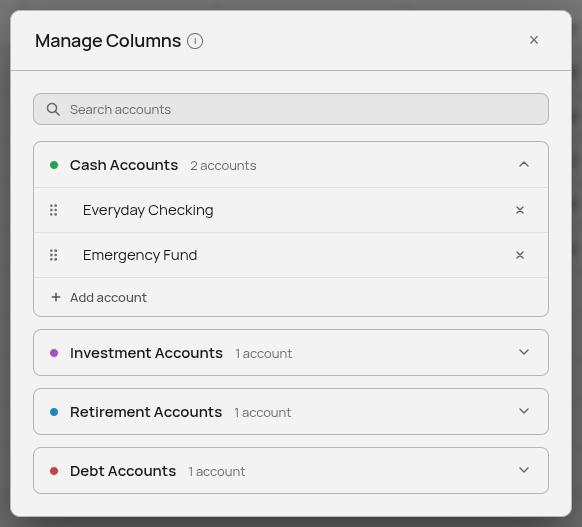
⋮ → Manage Columns on the Balance Sheet tab opens the account editor: a search box above one collapsible card per account type.
- Rename — click the name, type, press Enter or click away. Escape cancels.
- Reorder — drag by the six-dot handle on the left. The order here is the column order in the table.
- Change type — drag an account into a different type’s card. Dropping “Brokerage” into Investment Accounts moves it there.
- Add — the quiet “Add account” row at the bottom of each card creates an account of that type with a placeholder name and puts your cursor in it.
- Delete — the × on the right. If the account has values saved anywhere, you get a second confirmation, because deleting it erases those values permanently.
Two small behaviours: the cards work as an accordion, so opening one closes the others (during a drag, hovering a closed card springs it open); and while a search is active, adding and dragging are switched off, since reordering a filtered list would commit an order you cannot see.
The accounts here are the same accounts your transactions are filed under. Renaming one here renames it everywhere. See Accounts.
Working in the cells
Both tables are grids you can use like a spreadsheet: arrow keys to move, Enter to go down, drag to select a block, copy and paste between cells or in and out of Excel. See Working in the Tables.
Two details specific to saving:
- Your typing is saved shortly after you stop, and immediately when you click away from the cell. You do not press a save button.
- If a save fails, a message says so. “Couldn’t save your change — it hasn’t been stored.” If that appears, the number on screen did not reach your file.
Empty states
A year with no table in one statement shows a line of text saying so, pointing you to Add New Year in the ⋮ menu. A fresh database with no years at all says “No years yet”.
Related: Computed and Typed Values · Statement Years · Accounts · Categories · Working in the Tables