Balances From Your Statement
Many bank exports carry a balance as well as transactions. Aventurine uses it to fill in your Balance Sheet, so that part of the app maintains itself too.
Where the balance comes from
A running balance column in a CSV or Excel file. Map it to Balance on the Map Columns screen — Aventurine usually detects it and maps it for you.
The closing balance in an OFX or QFX file. These formats carry an official closing balance for the statement period. It is used automatically; there is no mapping step for OFX files.
If your file has neither, nothing happens. Your Balance Sheet stays as it was, and you can type figures in yourself.
One figure per month
A balance is a point in time, but the Balance Sheet holds one figure per month. So for each calendar month in the file, Aventurine keeps the balance from the latest-dated row in that month.
If several rows share that latest date — a busy last day of the month — the one that appears last in the file wins, since banks list a day’s transactions in the order they posted. An OFX closing balance is treated as authoritative and wins any tie on the same date.
The result is a month-end balance per month covered by the file, which is exactly what the Balance Sheet wants.
Which column it fills
The account you chose at the start of the import. Because the account is settled before you ever see a row, Aventurine never has to ask “should this balance go in Checking?” — the answer is already known.
This is why the account question moved to the front of the import: one question, asked once, and everything downstream follows from it. See Accounts.
Imported balances are ordinary cells
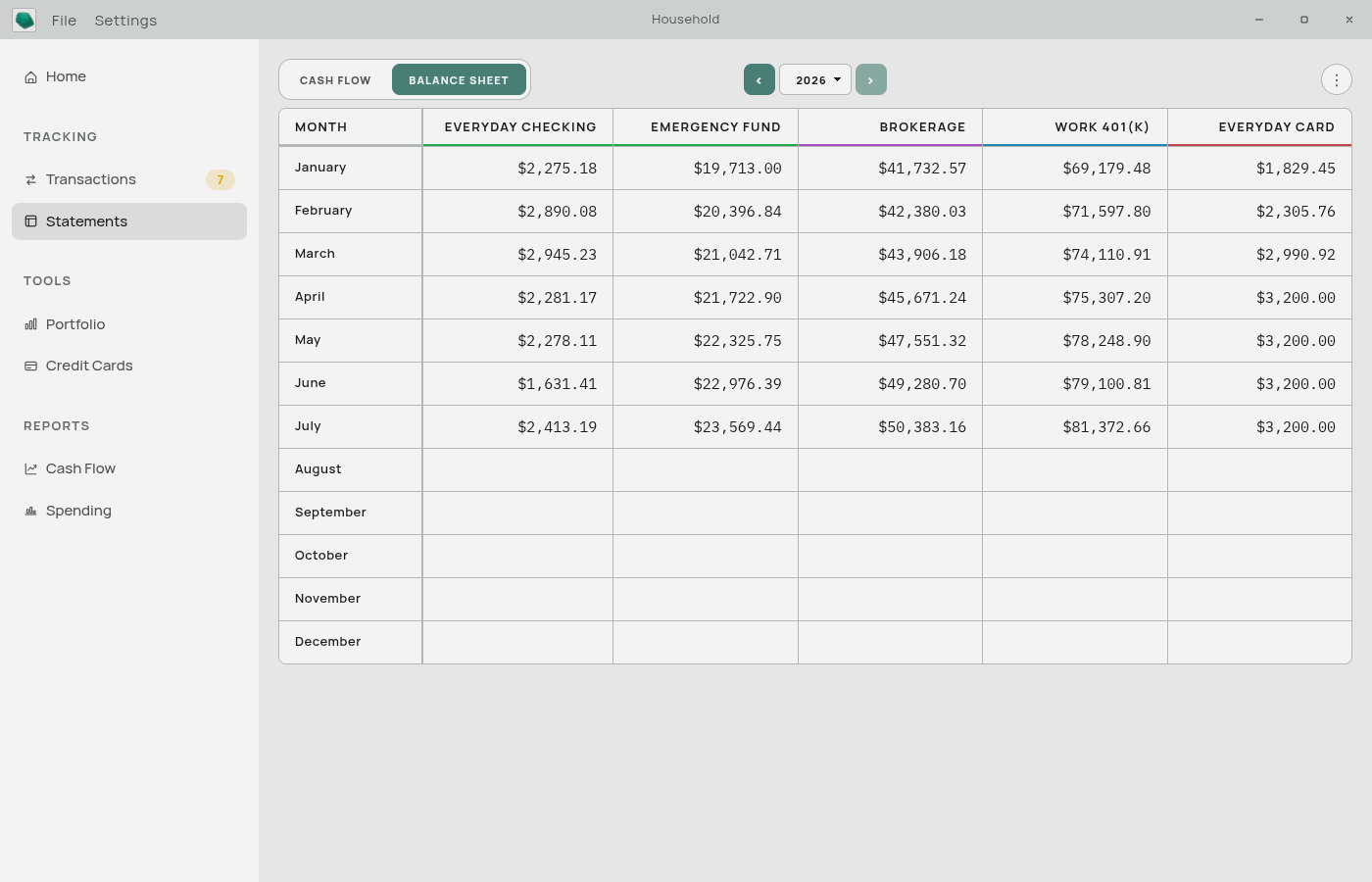
Once a figure lands on your Balance Sheet it is a normal cell. No lock, no special styling, no separate layer.
- Edit it — type over it.
- Clear it — select and delete.
- Overwrite it — importing a file that covers the same month again replaces it with the newer figure.
This is a deliberate simplification. Balance Sheet cells are not calculated from anything, so there is no “computed value” to fall back to. An import simply seeds the cell; from then on it is yours. This is different from the Cash Flow statement, where cells do calculate themselves — see Computed and Typed Values.
Balances the app ignores
“Available balance.” OFX files often carry both a ledger balance (the account’s book balance) and an available balance (spendable funds after holds). Only the ledger balance is used. Likewise, a column headed “Available Balance” is deliberately not treated as the balance column.
Unreadable balances. A blank or malformed balance cell is simply skipped. It never fails the row — the transaction is perfectly valid regardless.
Filling gaps yourself
There is no requirement to have a figure in every month. The dashboard’s Net Worth and Capital Snapshot cards carry each account’s most recent figure forward, so an account you update quarterly still charts sensibly.
For accounts whose exports carry no balance — most credit cards, most brokerages — typing a figure in once a month is enough. That is what makes Net Worth work.
Related: The Statements Page · Accounts · Matching Your Columns · The Dashboard