Categories
A category is a label like Food, Rent / Mortgage, or Primary Income. Every transaction either has one or is Uncategorized.
Categories do three jobs at once:
- They group your transactions.
- They are the columns of your Cash Flow statement — every category is a column, in the order you put them in.
- They decide the direction of a transaction. See Money In Money Out and Transfers.
The three types
Every category is Income, Expense, or Transfer. This is the category’s type, and everything filed under it inherits it.
- Income — money arriving.
- Expense — money spent.
- Transfer — money moved between your own accounts. Neither income nor spending.
What you start with
Sixteen categories. They are listed in Default Categories.
They are a standard, recognizable set — not an opinion about how you should organize your money. They exist mainly because the built-in categorizer needs somewhere to put things: it recognizes merchants and files them under these names. See Automatic Categorization.
You are not stuck with them. Rename them, reorder them, delete the ones you do not use, add your own.
Managing categories
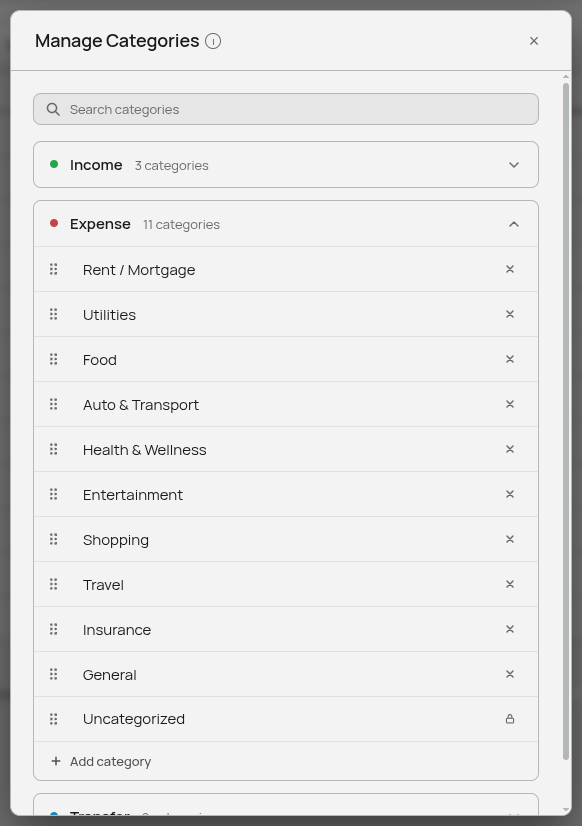
Statements → Cash Flow tab → ⋮ → Manage Categories.
The editor is a search box above three collapsible cards, one per type.
Rename — click the name, type, press Enter or click away. Escape cancels. The change appears everywhere immediately.
Reorder — drag by the six-dot handle. This order is the column order in your Cash Flow statement and the order in every category dropdown.
Change type — drag a category into a different type’s card. This also re-types every transaction filed under it, which is usually what you want and occasionally a surprise. See below.
Add — the quiet “Add category” row at the bottom of each open card. It creates a category called “New Category” and puts your cursor in the name so you can type over it.
Delete — the × on the right, after a confirmation.
Two behaviours to know: the cards work as an accordion, so opening one closes the others (during a drag, hovering a closed card springs it open); and while a search is active, adding and dragging are disabled, because reordering a filtered list would commit an order you cannot see.
The two locked categories
The two Uncategorized rows — one Income, one Expense — have a padlock instead of a delete button and their names cannot be edited.
They are not ordinary categories. They are where the totals of uncategorized transactions appear in your Cash Flow statement. You never file a transaction under them; they fill and empty on their own. Renaming or deleting them would break the totals that depend on them, so the app does not allow it.
You can still drag them to reorder — the restriction is only on renaming, deleting, and moving them to a different type.
Rules to know
Names are capped at 18 characters. Category names appear as column headings and as pills on transaction rows, both of which are narrow. The longest default, “Health & Wellness”, is 17.
Names must be unique. Creating or renaming to a name you already have is refused.
Deleting is blocked while a category is in use. If any transaction is filed under it, or your Cash Flow statement has a value typed into one of its cells, the delete is refused with a count of what is still referencing it. Reassign those transactions first — filter by that category, select all, and bulk-edit them to something else.
Deleting also forgets its rules. Every learned “this description means this category” rule pointing at that category is removed with it.
Deleting unlinks credit cards. A card on the Credit Cards page linked to that category simply loses its link. It does not block the delete.
Changing a category’s type
If you move a category from Expense to Transfer, every transaction filed under it becomes a transfer as well. There is no way for a transaction to disagree with its category.
This is usually what you want — a mistyped category is fixed everywhere at once. It also means the change is retroactive: your statements and charts for previous years change too. If that is not what you want, make a new category of the right type and move the affected transactions to it instead.
Renaming is always safe
Rename freely. Behind the scenes each category keeps a permanent internal identity, so renaming “General” to “Miscellaneous” moves every transaction, every statement value, and every learned rule with it. Nothing is orphaned.
Designing your own set
A few things worth knowing before you redesign everything:
Fewer categories is usually better. Twelve categories you can tell apart at a glance beats forty you have to think about. The Cash Flow statement gets one column per category, and a statement with forty columns is a spreadsheet again.
Deleting a default has a small cost. The built-in categorizer targets the default names. If you delete “Travel”, nothing breaks — transactions that would have been filed there simply come in uncategorized and you categorize them yourself, which teaches the app your own preference. But you lose the head start for that kind of spending.
Custom categories work fully. They are dropdown options, statement columns, filters, chart lines, and rule targets like any other. The only thing they miss is the built-in merchant knowledge, which only knows the default names.
Related: Default Categories · Automatic Categorization · Money In Money Out and Transfers · The Statements Page