Accounts
An account in Aventurine is a bucket you define: “Everyday Checking”, “Amex Gold”, “Emergency Fund”. Transactions are filed under one, and each one is a column on your Balance Sheet.
Accounts and Balance Sheet columns are the same thing. Renaming an account renames the column; deleting the column deletes the account.
The kinds of account
When you create one, you pick a kind. The kind decides which group it sits in on the Balance Sheet and whether it can be used as a forecast starting point.
| Kind | Balance Sheet group |
|---|---|
| Checking | Cash |
| Savings | Cash |
| Credit Card | Debt |
| Loan | Debt |
| Investments | Investment |
| Retirement | Retirement |
You can have as many of each as you like. Two checking accounts is completely normal.
The kind is a starting point, not a cage — an account can be dragged into a different group later in Statements → Balance Sheet → ⋮ → Manage Columns.
Why you have to name it
When you create an account, Aventurine insists you type a name. It will not let you click past that step.
This is the one place in the app where only you have the answer. “Checking” is not a name, it is a category of thing — and a ledger full of “Checking”, “Savings”, and “Credit Card” reads like somebody else’s spreadsheet. “Chase Checking” and “Amex Gold” are what you actually call them.
Because naming is required, an account can never be created by accidentally clicking through a dialog.
A fresh database has no accounts
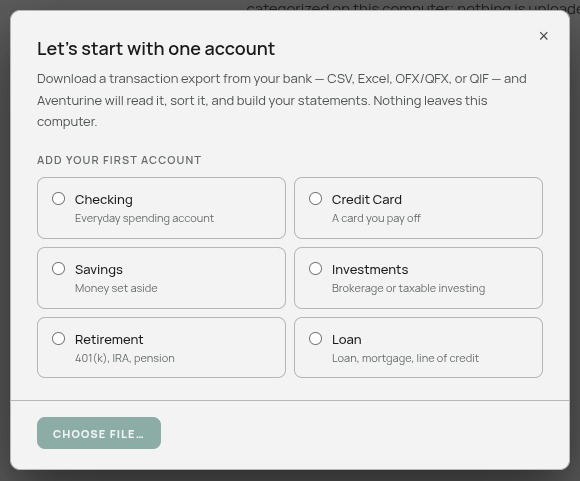
Aventurine ships with a standard set of categories, because categories have a sensible default and the app needs them to sort your transactions into. Accounts are the opposite: there is no useful default name, so a new database starts with none at all, and your Balance Sheet starts blank.
Behind the scenes there is a pre-named starter row for each of the six kinds, but they are invisible. They exist only so that the account picker has something stably-named to offer you, and each becomes a real, visible account the moment an import lands in it.
The practical consequences:
- Picking an account and then abandoning the import leaves nothing behind. No half-created account clutters your Balance Sheet.
- An account appears when you use it, not when you think about using it.
The account question
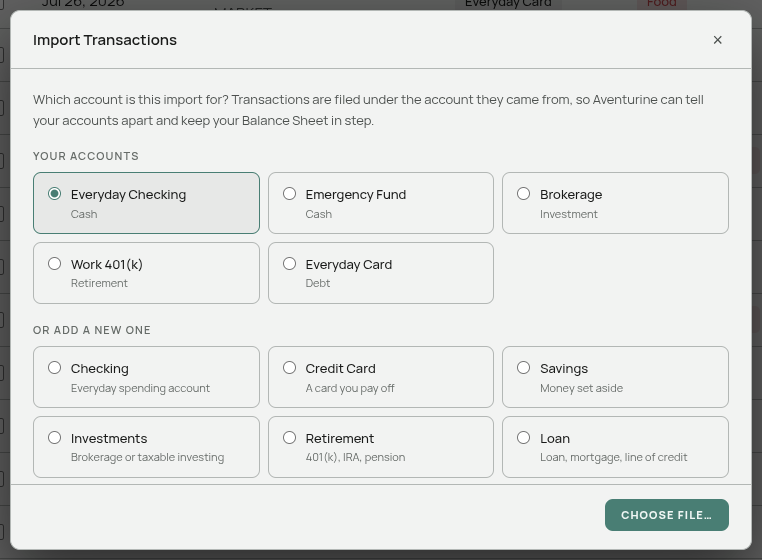
Every import asks which account it is for, before the file dialog opens.
The question shows two sections: Your accounts (the ones you already have, under your own names) and Add a new one (the six kinds). Choosing a kind asks for a name.
Nothing is pre-selected on your first import. The app has nothing to go on, and a pre-selected “Checking” that you accept by reflex would put your credit card statement in the wrong place. An unanswered question is better than a confidently wrong answer — the same principle the categorizer follows.
On later imports, the account you used last is pre-selected. For the routine monthly statement this makes the step a single click.
Why the file is never used to guess
Aventurine never reads the account from the filename, from a header, or from an account number in the file.
The reasoning: an account is a bucket you define. A file called chase_export_july.csv tells the app the name of a bank, not which of your buckets you meant — and if you switch banks mid-year, you still have one logical “Checking” whose history should stay together. Your own recent behaviour predicts your answer far better than the file does.
A side benefit is that Aventurine never has to look at, store, or display a masked account number.
Why the account matters
It labels your transactions. The Account column and the Account filter both work off it.
It routes imported balances. If your bank’s file includes a balance column, those figures go into that account’s Balance Sheet column. Because the account is settled before you ever see a row, the app never has to ask a second time. See Balances From Your Statement.
It gives the forecast a starting point. Only Cash-kind accounts are offered there. See Cash Flow Reports.
Transactions with no account
Rows you type in by hand have no account unless you pick one, and they show a dash in the Account column. Nothing breaks — they still count in every total, and they can be filtered with the “No account” option. You can set an account on any row by editing it.
Managing accounts
Statements → Balance Sheet tab → ⋮ → Manage Columns. Rename, reorder, change group, add, delete.
Deleting an account that still has Balance Sheet figures asks for confirmation and then erases those figures permanently. Transactions filed under a deleted account keep working — they simply show a dash where the account used to be.
Related: The Statements Page · Importing Transactions · Balances From Your Statement