Preferences
Settings → Preferences in the title bar. Four tabs.
Changes take effect immediately — there is no Save button.
Appearance
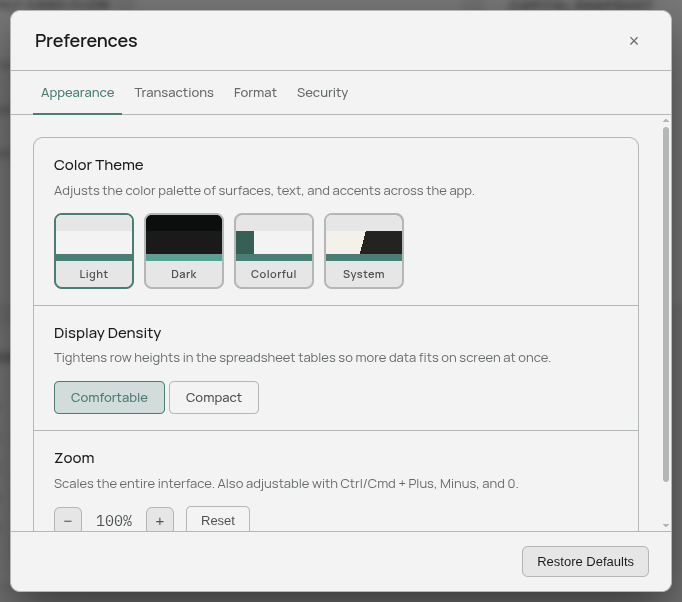
Color Theme — Light, Dark, Colorful, or System. Colorful is the light theme with an accent-coloured sidebar. System follows your operating system and switches with it. Changing the theme reloads the window.
Display Density — Comfortable or Compact. Compact tightens the row heights in the spreadsheet tables so more months and columns fit on screen at once.
Zoom — scales the whole interface. Also available with Ctrl/Cmd + Plus, Ctrl/Cmd + Minus, and Ctrl/Cmd + 0 to reset. The setting persists between launches.
Transactions
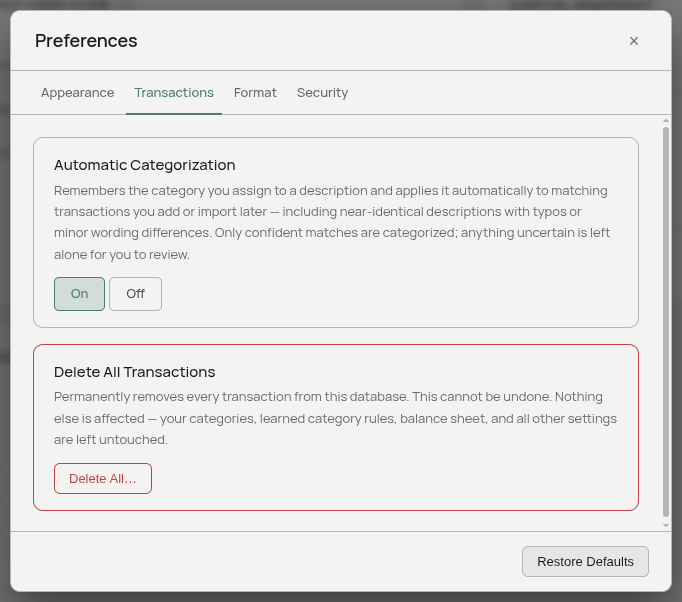
Automatic Categorization — On or Off.
On (the default), Aventurine remembers the category you assign to a description and applies it to matching transactions you add or import later, including near-identical descriptions. It also applies its built-in merchant knowledge, and clean merchant names.
Off, nothing is categorized unless you do it yourself, and no clean names are applied. Rules you have already taught it are kept, and resume working if you switch it back on.
Delete All Transactions — wipes every transaction in the database. You must type DELETE to enable the button, and it cannot be undone.
It touches only transactions. Categories, learned rules, the Balance Sheet, the Portfolio, and every setting are left exactly as they were.
Format
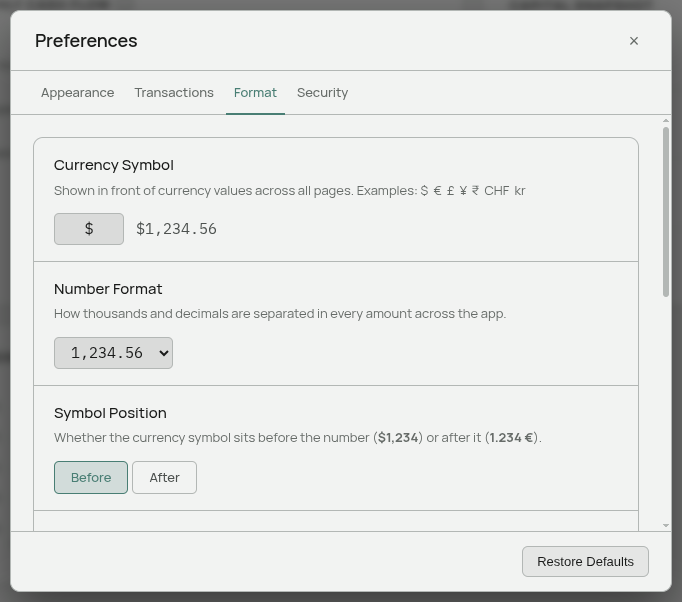
Everything here is display only. Your stored figures never change, so switching between these is always safe.
Currency Symbol — up to three characters. $, €, £, ¥, ₹, CHF, kr. A live preview shows the result.
Number Format — 1,234.56, 1.234,56, or 1 234,56. This changes both how numbers are shown and how they are read as you type in the tables.
Symbol Position — before the number ($1,234) or after it (1.234 €).
Hide Cents — rounds displayed amounts to whole units for a cleaner view. Your stored values keep their cents, and a cell you are editing shows them, so nothing is lost.
Negative Numbers — a minus sign (-$1,234) or accounting parentheses (($1,234)). Cells you are editing always show a plain minus so they can be read back correctly.
Date Format — Jun 18, 2026, 2026-06-18, 06/18/2026, or 18/06/2026. Affects dates the app writes, such as the Transactions list. Date pickers are drawn by your operating system and follow its settings instead.
Week Starts On — Sunday or Monday. Used by the “This week” quick range in the transaction filters.
Security
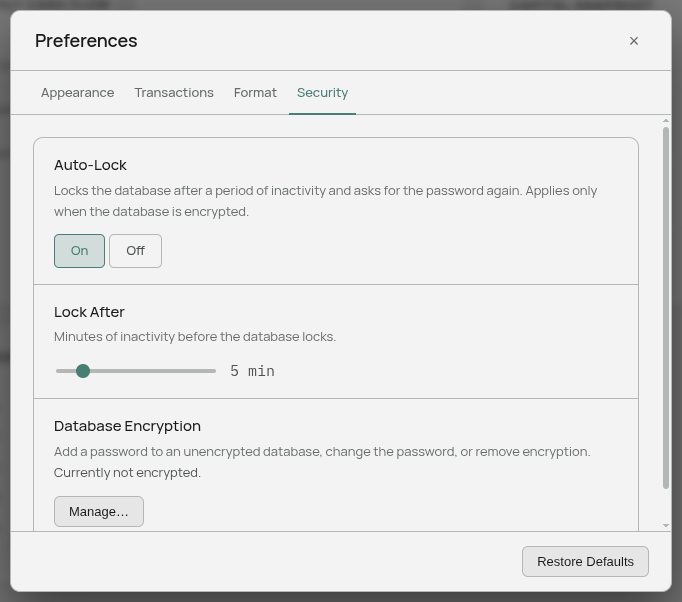
Auto-Lock — On or Off, and Lock After 1 to 30 minutes.
After that much inactivity the database locks and asks for its password again. Any mouse movement, key press, or scroll resets the countdown.
This only applies to an encrypted database. A database with no password has nothing to lock, so the setting has no effect on one.
Database Encryption → Manage… — add a password to an unencrypted database, change the password, or remove encryption. See Databases and Passwords. The line next to the button tells you the current state.
Restore Defaults
The button at the bottom of the Preferences window resets every setting to its first-run state: theme, density, zoom, all the Format settings, and Automatic Categorization.
It asks for confirmation first and says plainly that it affects settings only, never your financial data. It does not remove your password, your accounts, or anything you have entered.
Where settings are stored
Per computer, not in your database: theme, density, zoom, currency symbol, number format, symbol position, hide cents, negative style, date format, week start, auto-lock settings, and the account your last import used.
Copy your database to another machine and your data comes with it, but these start at their defaults there.
In the database: Automatic Categorization, and whether you dismissed the first-run setup card. These travel with the file, because they affect how data is handled rather than how it looks.
Related: Databases and Passwords · Automatic Categorization · Where Your Data Lives