Matching Your Columns
Every import shows the Map Columns screen: a preview of your first three rows above a set of dropdowns.
Its job is to let you confirm which column is which before anything is saved. Nothing is written to your database at this point.
It appears for every format, including OFX, QFX, and QIF. Those formats state which field is which, so their dropdowns arrive already correct — the step is a one-click confirmation rather than a puzzle. Aventurine does not skip a confirmation to save you a click, because a step you never saw is a step you cannot correct.
The preview is the point
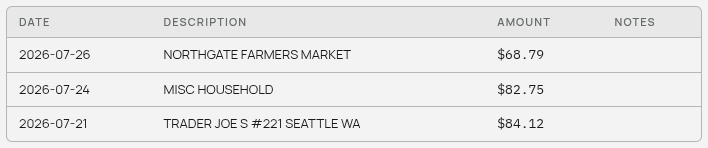
The preview at the top is not a dump of your raw file. It is your first three rows run through the matching you are choosing right now. Change a dropdown and it re-renders.
So the check is simple: do the dates look like dates and the amounts like amounts? If yes, the matching is right. Click Continue →.
The fields
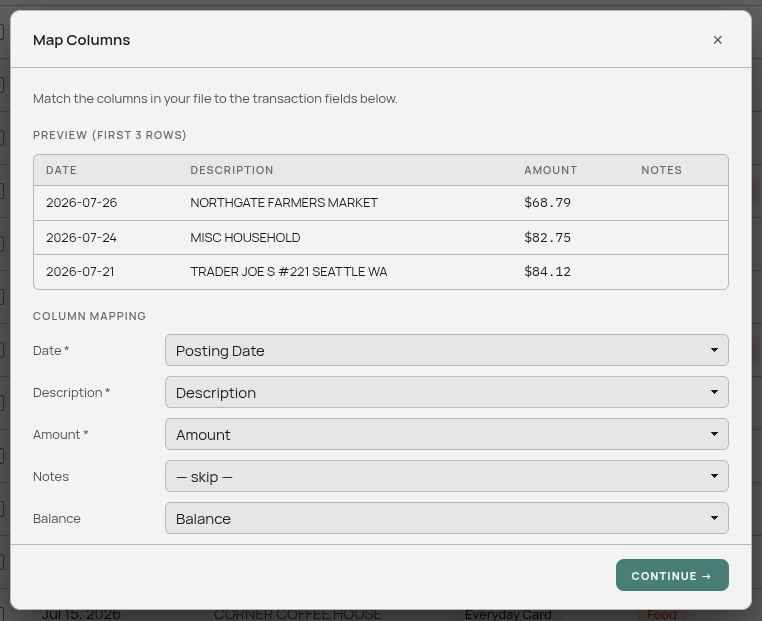
Fields marked * are required.
Date * — the transaction date. If your file has both a transaction date and a posted date, either works; pick whichever you think of as the real date. Be consistent between imports, or the same transaction downloaded twice may not be recognized as a duplicate.
Description * — what the transaction was. This is the field the categorizer reads and the field your learned rules key off, so pick the column with the merchant in it — usually the longest text column.
Amount * — how much. Positive means money in, negative means money out.
Notes — optional extra text. Set to ”— skip —” if you do not want it.
Balance — optional. If your file has a running balance, mapping it here fills in your Balance Sheet. See Balances From Your Statement.
When your file has Debit and Credit columns
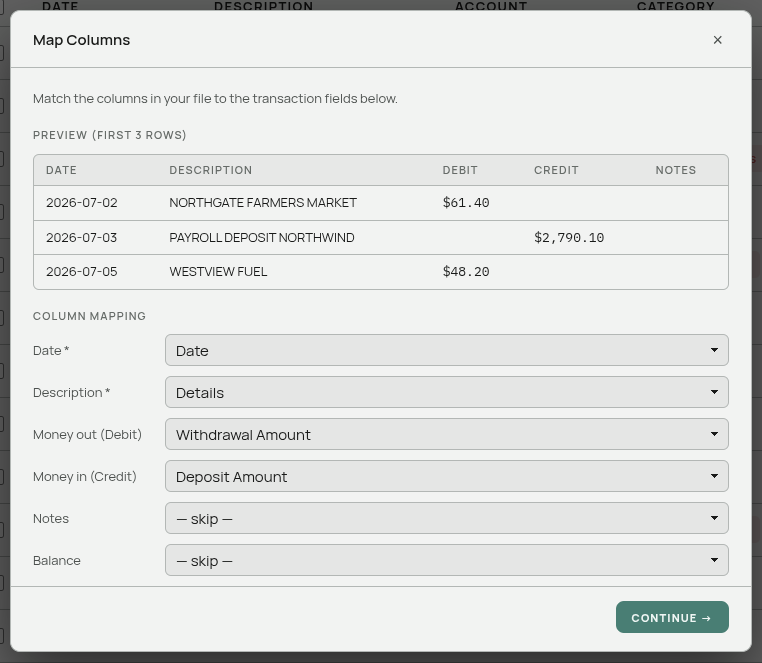
Some banks split money out and money in into two columns instead of using one signed column. Aventurine detects this and shows two dropdowns instead of one:
- Money out (Debit)
- Money in (Credit)
Direction then comes from which column holds the value, not from its sign — banks usually put positive numbers in both. The preview shows Debit and Credit as separate columns so you can see each one pulling from where you meant.
You cannot switch this layout on or off by hand, and that is deliberate. Whether a file uses one amount column or two is a fact about the file, not a preference. Aventurine works it out from the headers, or — when the headers are unhelpful — from the shape of the data: two number columns where no row has a real value in both is a debit/credit pair.
If it guessed the two columns the wrong way round, just repoint each dropdown. Only the overall shape is fixed.
At least one side must be mapped, and they cannot both point at the same column.
How the guesses are made
By header name first. Headers containing “date”, “posted”, or “transaction” suggest the date; “amount”, “debit”, “credit”, “sum”, or “total” suggest the amount; “description”, “merchant”, “payee”, “memo”, “narrative”, “detail”, or “name” suggest the description; “notes”, “comment”, “remark”, “reference”, or “ref” suggest notes; “balance” suggests balance.
“Available Balance” is deliberately not treated as a balance column — it is spendable funds minus holds, not the month-end figure the Balance Sheet wants.
By the shape of the data second. With unhelpful or missing headers, Aventurine looks at what the columns contain: a column where most values parse as dates is the date; a column where most values parse as numbers is the amount; the column with the longest average text is the description.
A column already claimed as the date or balance is never also taken as the amount — dates like 2026-01-01 would otherwise look numeric.
Fixing a wrong guess
Change the dropdown. The preview updates immediately, so you can see whether it worked before committing.
If the file’s columns have no headers at all, the dropdowns are labelled with whatever the first row contained. Reading the preview is the reliable way to tell which is which.
If you get it wrong anyway
The next screen, Here Is Your Import, has a Go Back button that returns you here with your choices intact. Nothing is saved until you press “Looks Right”.
If you only notice after importing, select the affected rows on the Transactions page and delete them, then import again.
Related: Supported File Formats · Importing Transactions · Balances From Your Statement