Installing Aventurine
Before you start
Aventurine runs on Windows and Linux. Your data file works on either one, so you can move between them later without converting anything.
You do not need an account, a licence key, or an internet connection after the download.
Download and install
Download Aventurine from the official site, then run the installer for your system as you would any other app.
Aventurine is currently in beta and moving quickly. New versions are released regularly, and you install them the same way you installed the first one.
The app never updates itself
There is no automatic updater and no “check for updates” button. This is on purpose: the app makes no network connections at all, and an update check would be one.
To move to a newer version, download it and install it over the top. Your data is not stored inside the app, so upgrading never touches it — see Where Your Data Lives.
To see which version you have, open Settings → About from the title bar.
The first launch
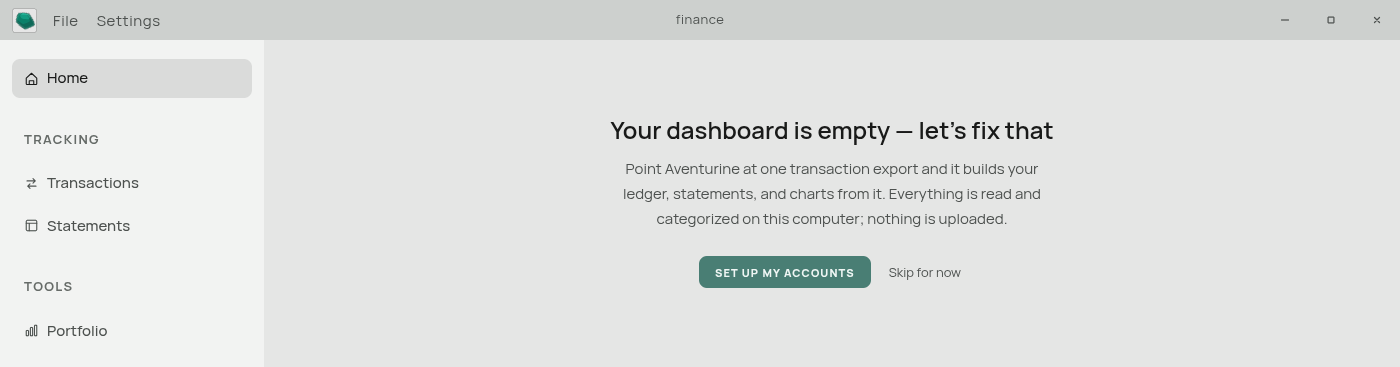
The first time you open Aventurine, it quietly does three things before you see anything:
- It creates a data folder for itself in your user profile.
- It creates an empty database file inside that folder, called
finance.db. - It fills that database with the default set of categories.
Then it shows you the Home dashboard, which will be empty apart from a single invitation to import a file. That invitation is the start of Your First Five Minutes.
Note what did not happen: no accounts were created for you. A fresh Aventurine has zero accounts, because an account name is something only you can supply. See Accounts.
Where your file is by default
Aventurine puts its starting database in a folder belonging to the app inside your user profile. That location works, but it is not a place you would naturally browse to or think to back up.
If you plan to keep using the app, it is worth creating your own database somewhere you actually look — your Documents folder, or a folder that syncs to a drive you control:
File → New Database, give it a name, set the location, and press Create.
Everything you do from then on goes into that file. See Databases and Passwords for the full details, including how to put a password on it.
Uninstalling
Uninstalling the app removes the program. It does not remove your database file, wherever you chose to keep it. If you want your financial data gone, delete that file yourself.
Next: Your First Five Minutes