Databases and Passwords
Everything you enter lives in one file. This page covers managing that file.
Creating a database
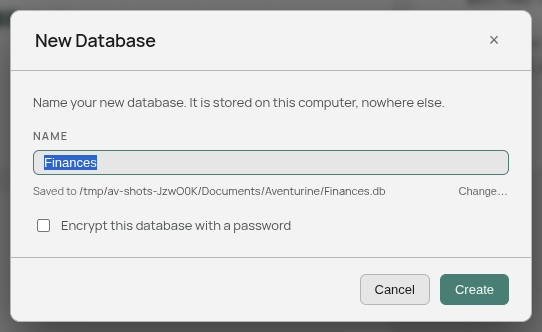
File → New Database.
Give it a name — “Finances”, “Household”, “2026” — and Aventurine shows where it will be saved. Change… picks a different folder.
Optionally tick Encrypt this database with a password and enter it twice.
Create makes the file and switches to it immediately. The old database is left alone on disk; you can open it again later.
A name is turned into a sensible file name for you — you are naming a database, not writing a path. If a file with that name already exists in the folder, Aventurine says so by name rather than throwing a generic error.
Opening one
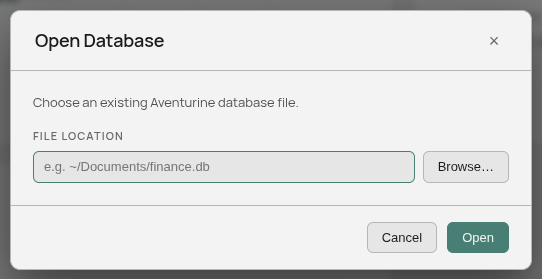
File → Open Database, then browse to the file or type its path.
Aventurine works out whether the file is encrypted by looking at it, so you are asked for a password only if one is needed. If the password is wrong it says so and lets you try again.
The file is checked before it is opened. If it is damaged, or is a database that did not come from Aventurine, you get a clear message and your current database stays open — a failed open never leaves you with nothing.
Saving a copy
File → Save Database As copies the current database somewhere else and continues working in the copy.
Note that word: it is a Save As, not a backup-and-stay. After it, the new file is the one being edited and the old one is frozen at the moment you copied it.
Encryption and password are preserved in the copy. You are not asked for the password again — it inherits the current one.
If you want a backup and want to keep working in the original, copy the file in your file manager instead. See Backing Up Your Data.
Which database is open
The name in the centre of the title bar. Aventurine reopens the same one on next launch.
”Confirm file write”
If you type a path by hand rather than choosing it with Browse…, your operating system shows a confirmation before the file is written:
Aventurine is about to write to a location you didn’t pick from a file dialog.
Confirm it and the write goes ahead. It is a safety check, not an error — the app is making sure that a write to an unusual location was actually your idea.
Paths you picked through Browse… or a save dialog never prompt, and neither does creating a new database in the folder Aventurine proposed to you.
Encryption
Encryption protects the file itself. Without the password it cannot be read, including by someone who copies it off your machine.
Adding, changing, or removing it
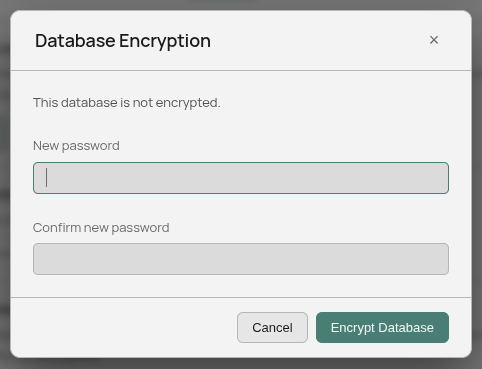
Settings → Preferences → Security → Database Encryption → Manage…
- On an unencrypted database: enter a new password to encrypt it.
- On an encrypted database: Change Password (current, then new twice) or Remove Encryption (current password required).
Removing encryption warns you first that your financial data will then sit unprotected on disk.
If you lose the password
The data is gone. There is no recovery, no reset, and no back door. That is what encryption means — a way in for you would be a way in for anyone.
Store the password wherever you keep your other important ones. And keep in mind that a backup of an encrypted file needs the same password: an old copy is no help if you cannot remember what unlocked it.
Locking
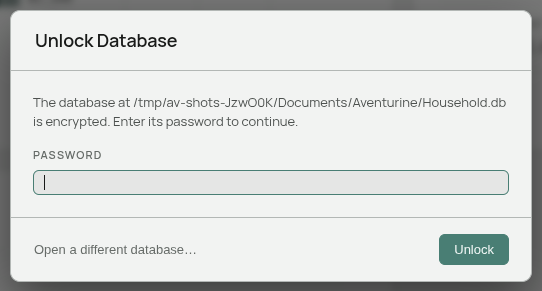
An encrypted database can be locked, which means Aventurine forgets the password until you enter it again. The file stays where it is; the app simply cannot read it.
Automatically, after a period of inactivity — see Preferences → Security → Auto-Lock. On by default, at 5 minutes. Any movement, key press, or scroll resets the timer.
On startup, when the app reopens an encrypted database it starts locked and asks for the password.
While it is locked, the whole app waits behind the unlock prompt. Nothing can be read or written.
The prompt cannot be dismissed, because there would be nothing behind it. If you cannot supply the password, “Open a different database…” lets you go elsewhere.
Locking only applies to encrypted databases. There is nothing to lock on a file with no password.
Using more than one database
Any number, switched with File → Open Database. Only one is open at a time.
Each is completely separate: its own transactions, categories, accounts, statements, and learned rules. Nothing is shared.
Common reasons: keeping household and business apart, one per person, or a scratch database for trying something out.
Your display preferences are shared across databases, because they belong to the computer rather than the file. See Preferences.
Moving between computers
Copy the file. Open it on the other machine with File → Open Database. The file format is the same on Windows and Linux.
Related: Where Your Data Lives · Backing Up Your Data · Preferences