Exporting Your Data
Your transactions can be written out to a standard file at any time. There is no lock-in: what you put into Aventurine, you can take out.
Doing it
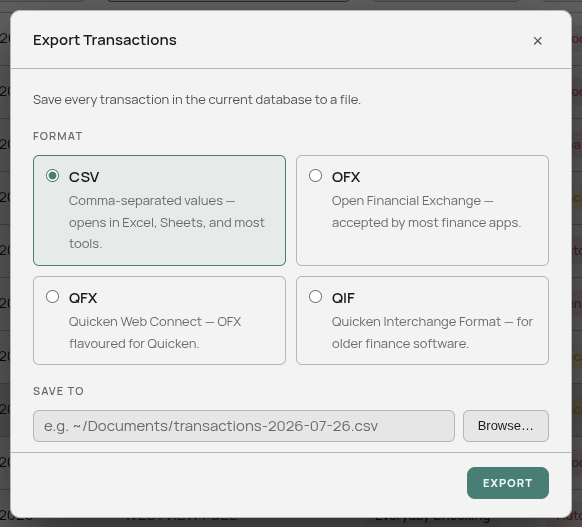
Transactions → Export.
- Pick a format.
- Pick a destination — Browse… opens a save dialog, or type a path.
- Press Export.
A progress bar tracks rows as they are actually written, so on a large ledger it means something. The dialog cannot be closed while a file is being written.
The formats
| Format | Use it for |
|---|---|
| CSV | Spreadsheets and almost everything else. The safe default. |
| OFX | Importing into another finance app. |
| QFX | Quicken. |
| QIF | Older finance software. |
CSV is the right answer unless a specific program has asked you for one of the others.
Filters decide what is exported
Export saves what you are looking at. If filter chips are set on the Transactions page, only the matching transactions are written, and the dialog tells you how many: “Save the 213 transactions matching your search to a file.”
With no filters set, it says “Save every transaction in the current database to a file.”
This makes Export a useful slicing tool: filter to one category and one year, export, and you have exactly that set — for a tax return, an expense claim, or a spreadsheet.
What is included
Date, description, amount, direction, category name, and notes, oldest first (the convention bank exports follow).
The description is your bank’s original text, not the cleaned-up merchant name. The original is what other software will recognize.
What is not included
Your Balance Sheet, Cash Flow statement, Portfolio, and Credit Cards. Export covers transactions only.
To keep everything, copy your database file — see Backing Up Your Data. That is the real backup; Export is for moving transactions into other software.
Overwriting
If a file already exists at the destination, Aventurine asks before replacing it.
”Confirm file write”
If you typed the destination by hand instead of using Browse…, your operating system asks you to confirm the write first. Confirm it and the export continues. It is a safety check, not an error — see Databases and Passwords.
Interrupted exports
The file is built alongside your destination with a .part suffix and only renamed into place when it is complete. If an export is interrupted, you are left with a .part file rather than a truncated file pretending to be finished. It is safe to delete.
Round-tripping
An exported CSV can be imported back into Aventurine, so you can move your ledger between databases — splitting a shared database into two, for example.
Categories will not survive the trip as categories: the export carries the category name as text, and the import reads date, description, and amount. Your learned rules re-apply the categories on the way in, so in practice a round trip into a database that has seen the same merchants comes back mostly categorized.
Related: Finding Transactions · Backing Up Your Data · Supported File Formats